
Appearance
Sign up and start your trial
Who this is for: School leaders and admins starting a new SchoolRota tenant
What you'll achieve: Create your school (or trust) account and reach the guided setup wizard
Before you begin
- A school or trust owner email you can access after checkout
- Your preferred portal subdomain (letters and numbers only, for example
riverside) - For trusts: at least two schools, each with a short code for the web address (for example
primary,secondary)
Open the signup page
Go to schoolrota.com/signup (or use Start free trial from the marketing site).
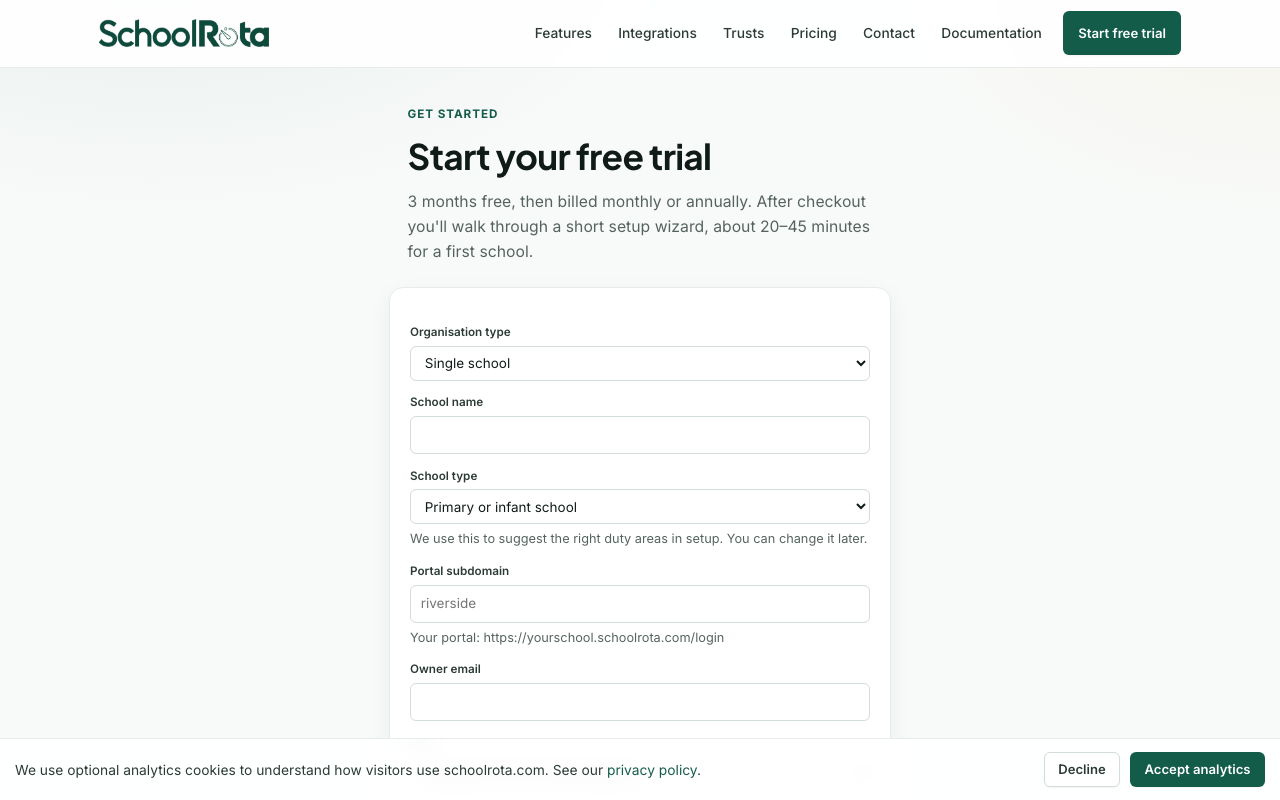
The form loads after a moment - if you only see the page title at first, wait for Organisation type to appear.
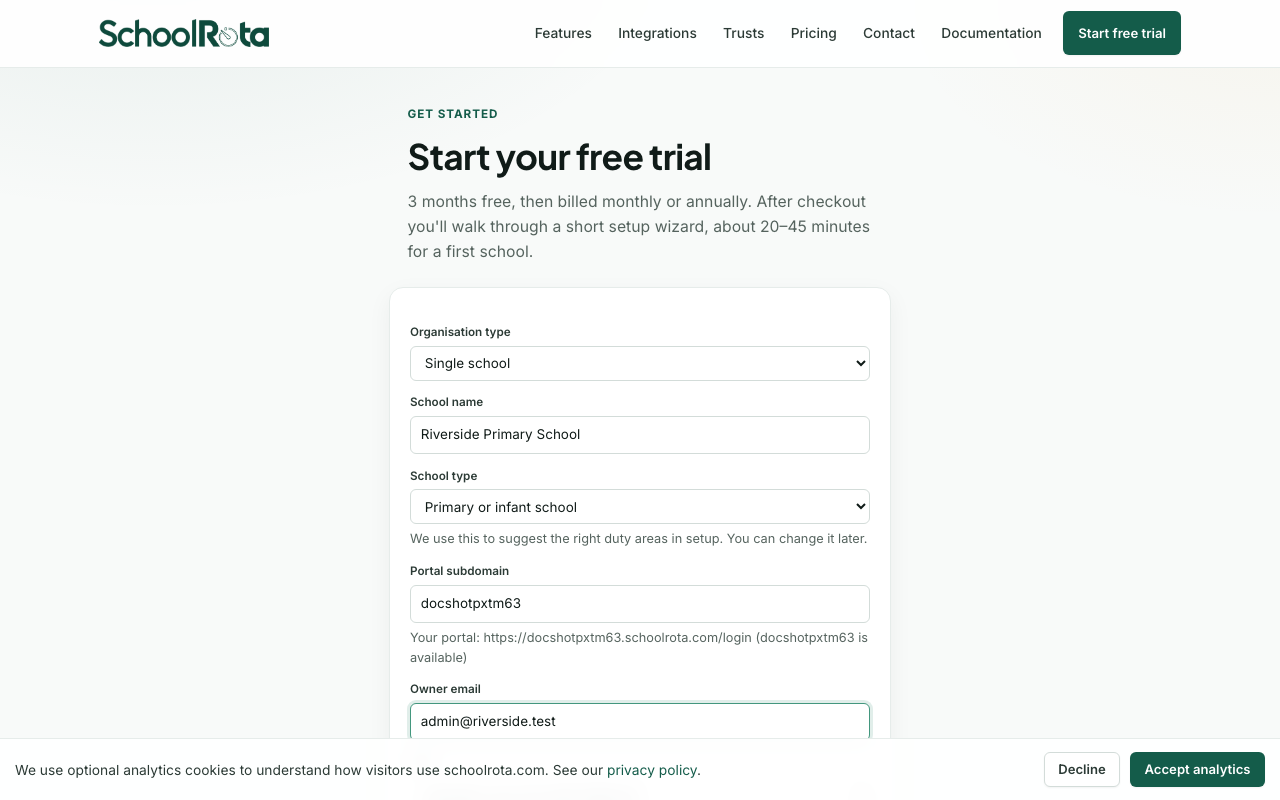
Fill in your details
Organisation type
| Option | Use when |
|---|---|
| Single school | One primary, secondary, or all-through school |
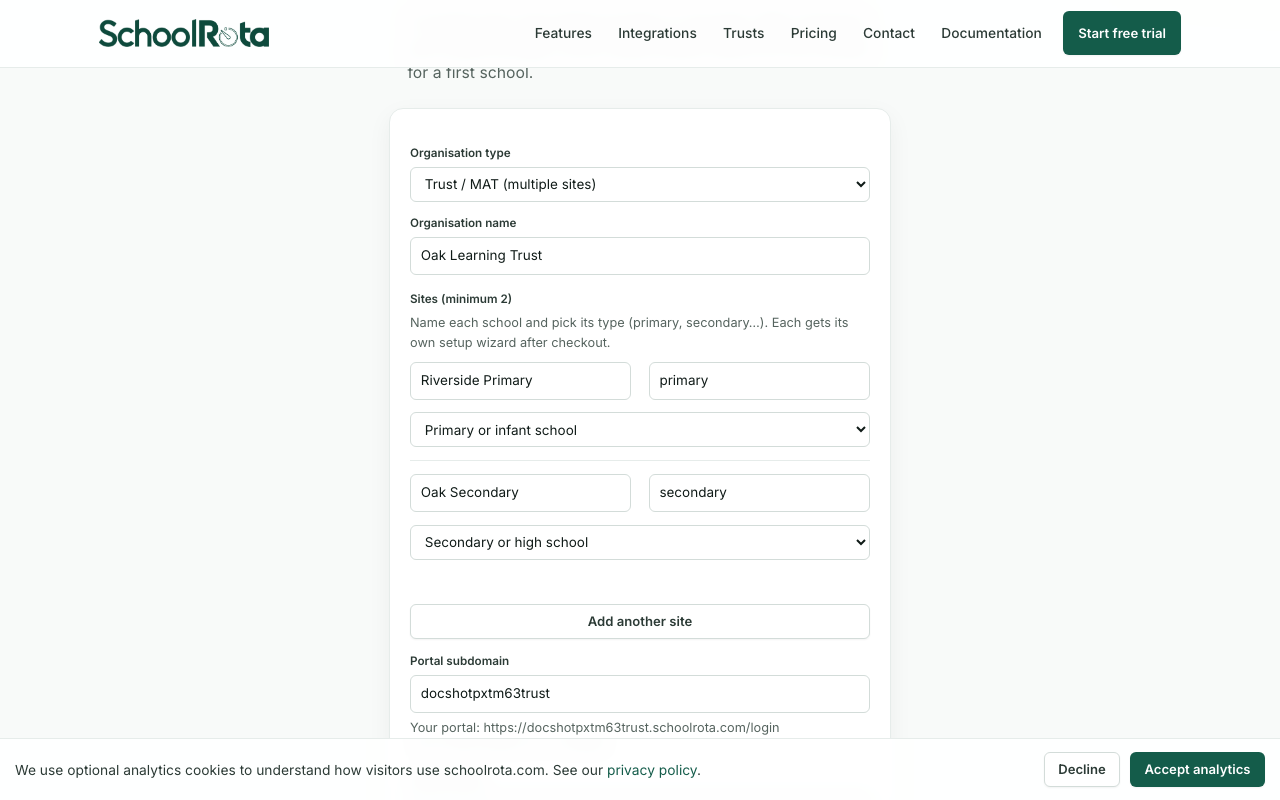
| Trust / MAT (multiple sites) | A group with two or more schools under one portal |
School or trust details
- Enter your school name (or organisation name for a trust).
- Choose country. The list is the United Kingdom only for now. This sets locale and terminology. School records are stored in London. Schools outside the UK should email us from the signup page to start a trial.
- For a single school, pick school type (primary, secondary, and so on). We use this to suggest duty areas in setup.
- For a trust, name each school (minimum two), give a short code, and pick a school type. Use Add another school for more, and Remove to drop extras down to two. Each school gets its own setup wizard after checkout.
Portal and owner
- Set your portal subdomain. The form checks availability as you type.
- Enter the owner email. Welcome credentials are sent here after payment.
Your portal URL will look like:
https://{your-host}/t/{subdomain}/loginOn a custom subdomain (for example riverside.schoolrota.com), the path is the same: /t/{subdomain}/login.
Plan and billing
- Choose a plan (staff seat limit is shown in the dropdown).
- Pick monthly or annual billing. New schools get 1 month free, then billing starts.
Accept the terms
Tick the confirmation box to accept the terms of service, acceptable use policy, privacy policy, and data processing agreement. Only someone with authority to act for the organisation should do this: we record the version accepted, the timestamp, and the owner email against your tenant, and it appears in your audit log as legal.terms_accepted.
Select Continue to secure checkout to pay (or start the free trial) on Stripe.
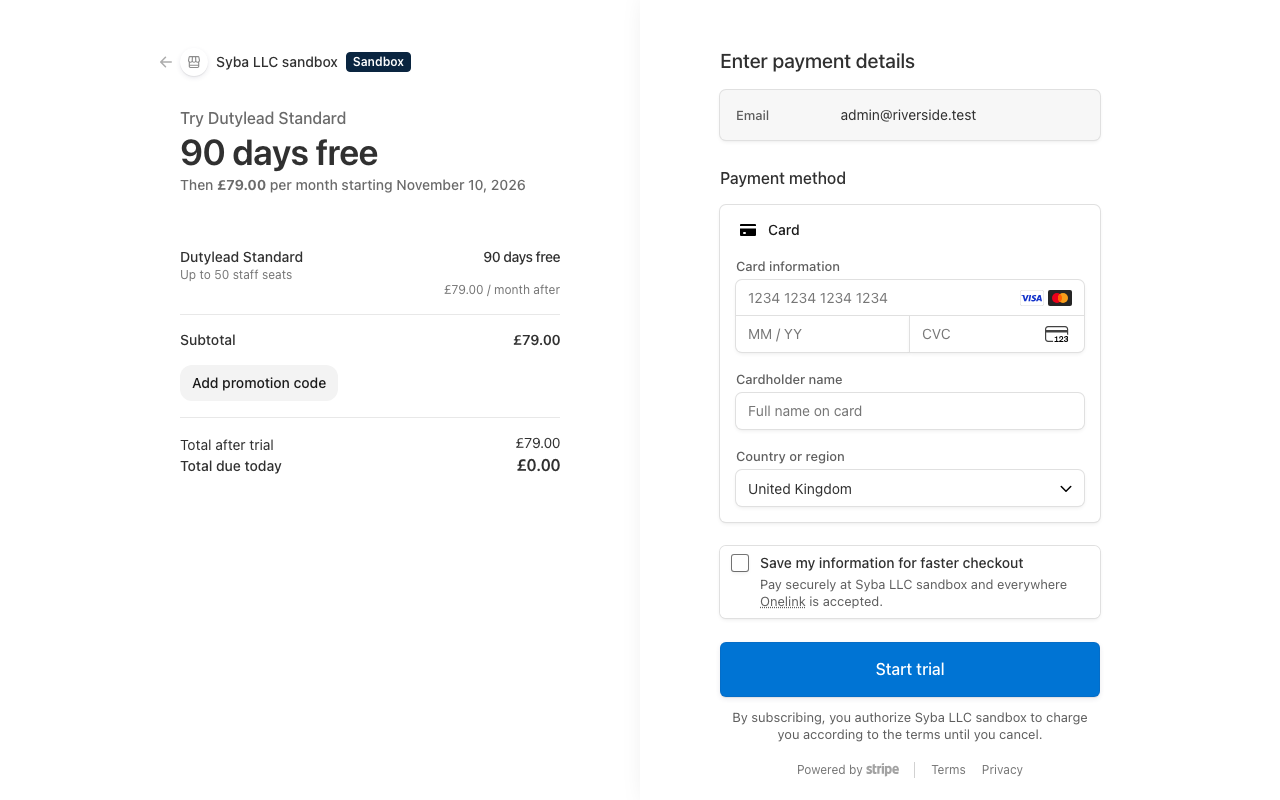
After checkout
- Stripe redirects you to a confirmation page.
- Check your owner email for a message from SchoolRota with portal login details (subdomain, email, temporary password).
- Sign in. Local-password owners enrol an authenticator first, then land in the guided setup wizard.
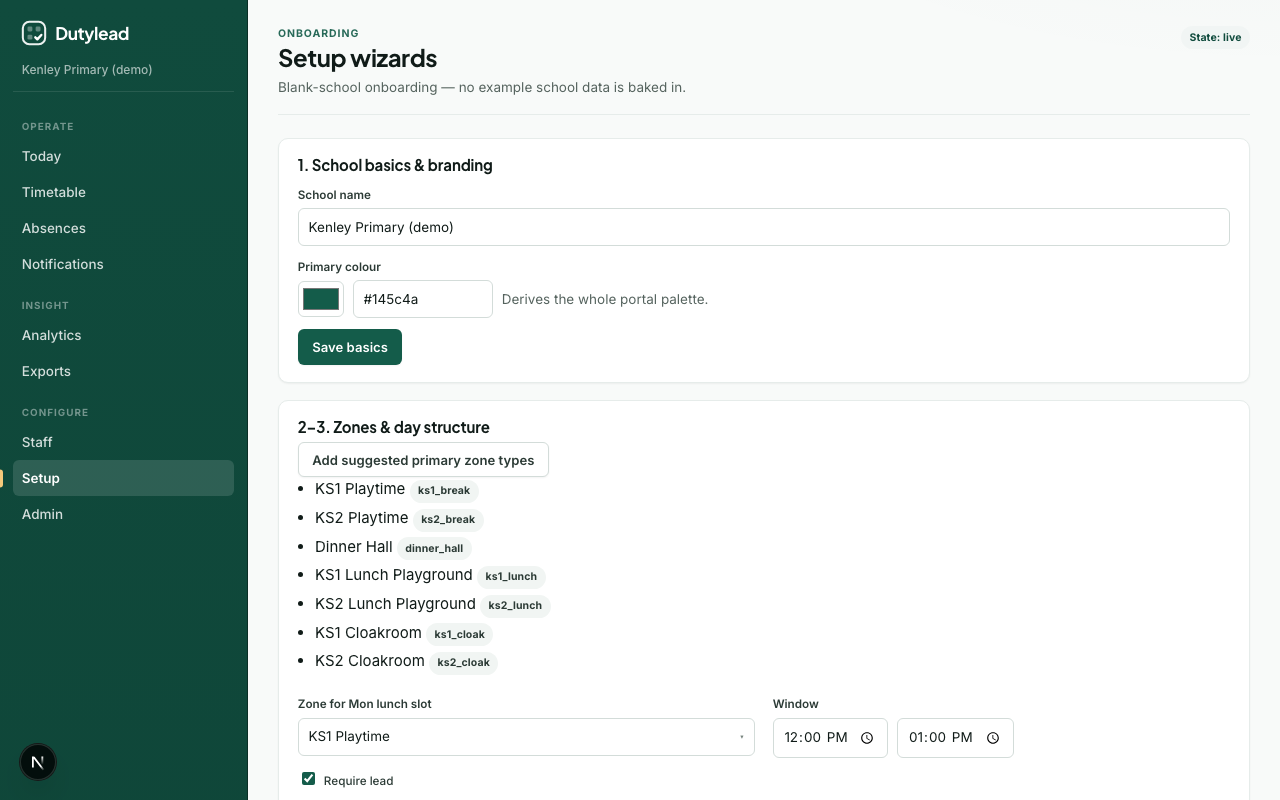
Most schools finish setup in 20–45 minutes by hand, or under 15 minutes if you import a staff list first, then a duty rota (or a pack of personal timetables) for AI-assisted setup. See Initial setup for each step.
Trusts with several schools
First-run setup hides the school switcher so you finish one school at a time. Use Skip for now, look around first if you need the sidebar, then the School menu to run setup for each school. School-scoped pages (Today, Timetable, Setup, and similar) follow the school you have selected.
What happens next
Troubleshooting
| Problem | What to try |
|---|---|
| Subdomain taken | Try a shorter or more specific name |
| Checkout unavailable | Stripe keys or prices may be misconfigured - use the email link on the signup page or contact us |
| No welcome email | Check spam; confirm the owner address; look for a message from SchoolRota (not your school name); allow @schoolrota.com |
| Wrong currency | Country on the form drives GBP vs USD. UK schools check out in GBP. Other countries email from the form. |