
Appearance
Notification rules
Who this is for: Tenant owner, Admin
What you'll achieve: Control who is notified: and how: when the duty board changes
Requires role
notify.configure. Tenant owner or Admin
Before you begin
- School setup should be underway so publishes will fire real events
- Decide which events matter for duty leads vs all staff
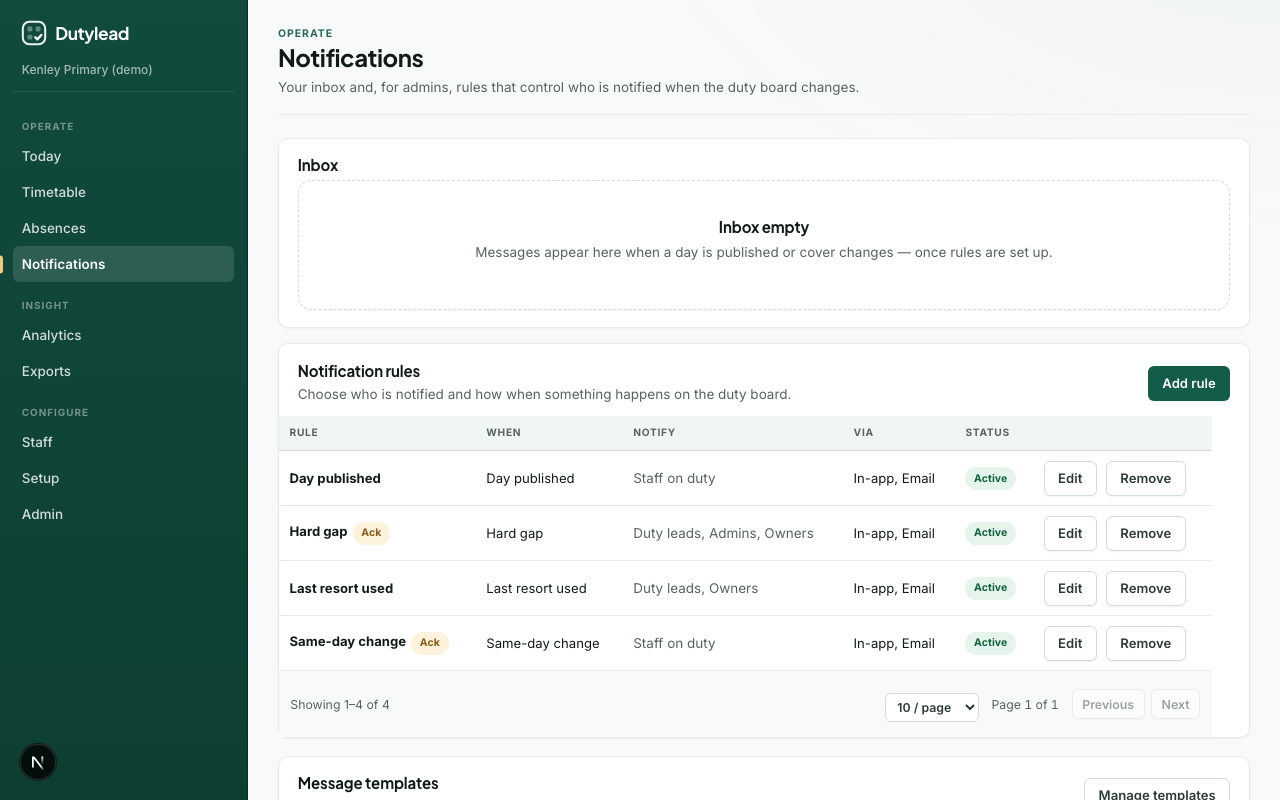
Open rules
- Open Notifications.
- Scroll to Notification rules (below the inbox).
- Select Add rule or Edit on an existing rule.
Default rules are seeded for new tenants: review them before go-live. Existing schools keep the rules they already have, so newer triggers (lesson cover gap, MIS sync failed, MIS sync stale, weekly missed work) need adding once with Add rule.
Triggers
| Trigger | When it fires |
|---|---|
| Day published | A duty day goes live |
| Same-day change | Cover is recomputed after an absence or roster change |
| Rota change requested | A staff member asks to come off a duty from My schedule. Duty leads are emailed (on by default) |
| Rota change decided | A duty lead approves or rejects that request |
| Unfilled post | A published day still has unfilled duty slots |
| Lesson cover gap | A published day still has lessons that need class cover |
| Only if needed used | Leadership or staff marked “only if needed” are placed on duty |
| MIS sync failed | A hosted CSV teaching timetable pull fails |
| MIS sync stale | A hosted CSV pull has not succeeded for longer than twice its saved schedule window (automatic refresh is coming soon) |
| Weekly missed work | End-of-week branded report of missed weekly blocks (how many and why, plus suggestions awaiting confirmation). Recipients are this rule's audience. Schedule and interventions-only vs all missed work live under Automatic email settings |
Audience
Combine:
- Staff on duty (assignees)
- Role checkboxes: Duty leads, Admins, Owners, Office staff, All staff (role)
Channels
| Channel | Behaviour |
|---|---|
| In-app | Appears in the Notifications inbox immediately |
Sent via the configured email provider (EMAIL_PROVIDER; console in local dev) |
Automatic email settings
Below the rules list, Automatic email settings control which triggers send email (in-app always follows rules). Presets:
| Preset | Behaviour |
|---|---|
| Publish only | Day published + hard gap emails |
| All alerts | Every trigger including same-day changes |
| In-app only | No automatic emails |
Quiet hours
When enabled, non-urgent emails (day published, last resort, weekly missed work) are held during the configured window (school timezone). They send when quiet hours end or at the digest time. A Friday afternoon missed-work report can therefore land at digest time if quiet hours are on.
Urgent triggers always send immediately:
- Same-day change (personal assignment changed today)
- Hard gap (unfilled duty posts after publish)
- Lesson cover gap (lessons still needing cover after publish)
- MIS sync failed / stale (teaching timetable sync problems)
Morning digest
Optional. Combines queued emails for each person into one message instead of several overnight emails. Works best with quiet hours (e.g. hold 22:00–07:00, digest at 07:00).
Production deployments should schedule GET /api/cron/notification-digest (with CRON_SECRET) every 15–30 minutes so queued mail flushes promptly.
Rota document for staff
Under Automatic email settings, Email rota document to staff on the rota sends the PDF or Word attachment to people assigned on the board. Choose when it goes out:
| When | Behaviour |
|---|---|
| When published | Sends as soon as you publish a day or week. If you publish tomorrow in the afternoon, staff get the email then. This is the default, and what existing schools keep |
| On a schedule | Sends at a clock time in the school timezone (Setup). Daily emails that day's rota from the time you set, on operating days only (for example 07:00 on the morning of the duty). Weekly emails the current week pack from the weekday and time you choose |
On a schedule, the day or week must be published first. If it is published later than the send time, the email goes out on the next run after publishing, and only once per day (or per week). Publishing does not send the document itself, so an afternoon publish no longer emails staff that afternoon. Rule-based alerts such as Day published are separate and still follow the settings above.
The attachment always shows the board as it stands when it is sent, the same as a manual export. On a weekly send, days later in the week that are still drafts appear as planned rather than final.
Production deployments should schedule GET /api/cron/rota-document-email (with CRON_SECRET) every 15 minutes so scheduled sends run close to the time you chose.
Email PDF/Word rota on Exports and Today is a separate manual send. Rule-based text alerts for publish, same-day change, hard gap, and last-resort triggers are controlled by the presets above.
Weekly missed work
Under Automatic email settings, Email the weekly missed-work report sends a branded SchoolRota summary (school logo and colours, confirmed and awaiting-confirmation counts, reason and item tables) to the people on the Weekly missed work rule. Choose the weekday (default Friday), time in the school timezone, and whether to include interventions only (default) or all missed work.
The report covers the operating week the send day falls in (Monday to Friday on a five-day week), so a Friday afternoon send reports that same week. Empty weeks send nothing, and the week is not marked complete, so a late log can still trigger the report. Weeks with only suggestions still send. Production deployments should schedule GET /api/cron/missed-work-digest (with CRON_SECRET) every 15 minutes.
The branded report is not a plain notification email. In-app messages still follow the rule.
Priority
- Normal: informational
- High: requires confirmation in the inbox
Message templates
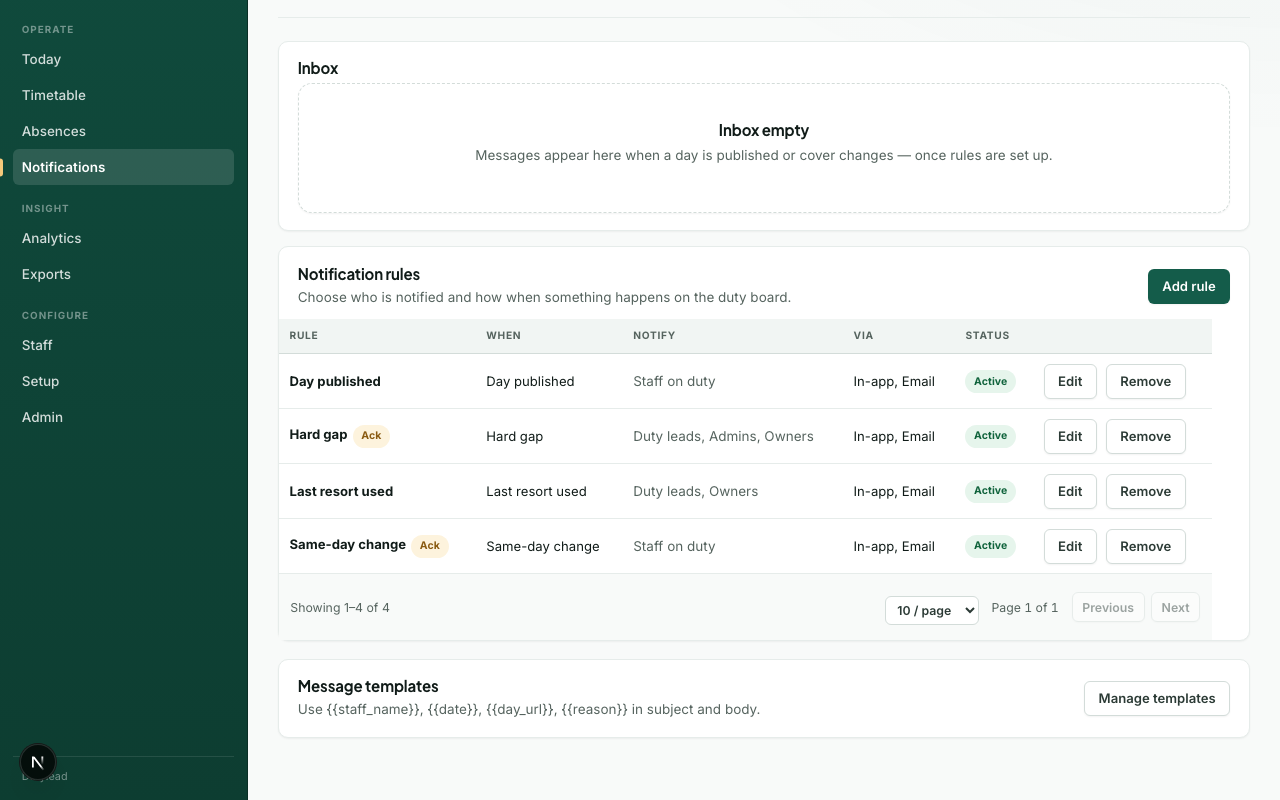
Select Manage templates to edit subjects and bodies.
Merge fields:
| Field | Replaced with |
|---|---|
| Recipient / staff display name |
| Duty date |
| Link to the day board |
| Context for the change |
See Notification merge fields.
What happens next
Troubleshooting
| Problem | What to try |
|---|---|
| Inbox empty after publish | Confirm a rule exists for Day published with in-app channel |
| No emails in local dev | Check console output. EMAIL_PROVIDER=console logs instead of sending |
| Cannot edit rules | Need Admin / Owner with notify.configure |