
Appearance
Navigating the portal
Who this is for: All users
What you'll achieve: Find every area of the school portal
First days (focused setup)
New admins do not see this sidebar until a school is ready to go live, or they choose Skip for now, look around first. Until then the header is Guide, Help, and Sign out. Help & ideas still works from Help. The Assistant button is hidden so setup stays on one task. See Initial setup.
Sidebar sections
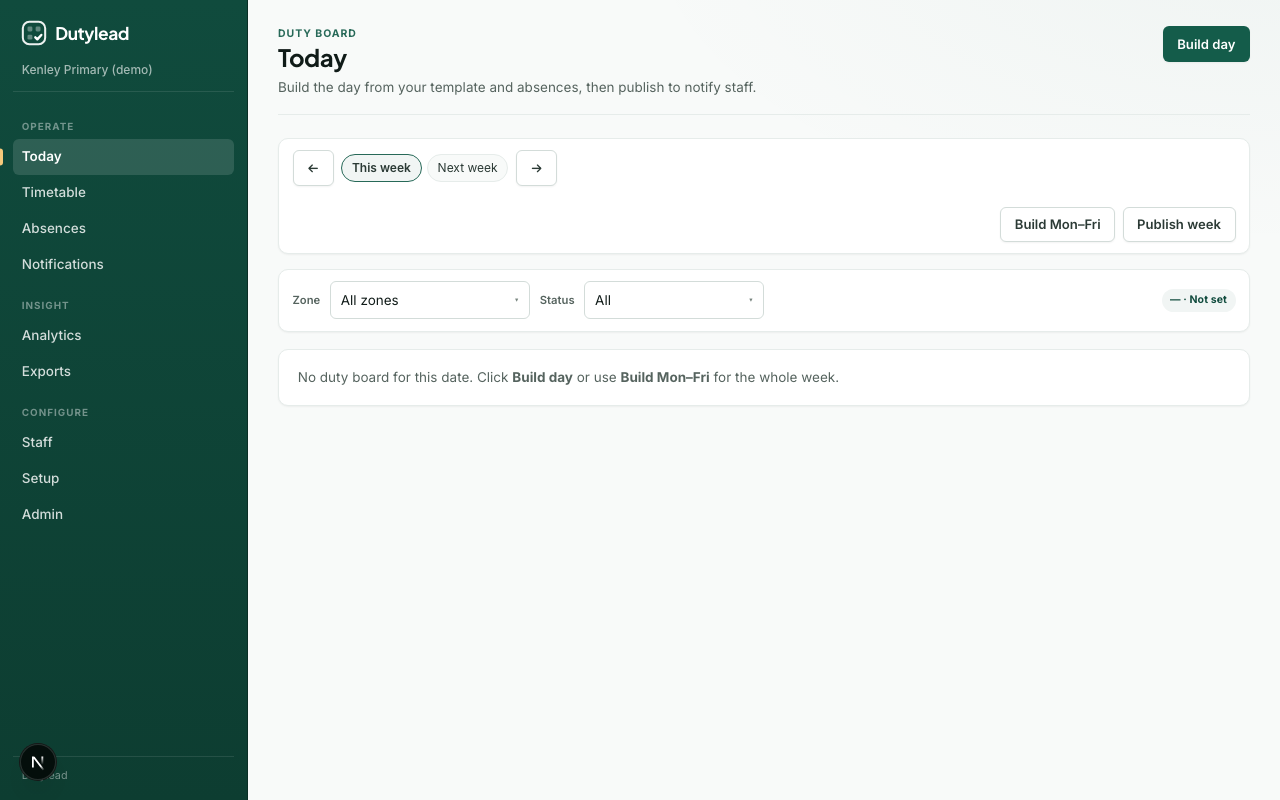
The portal groups pages into three sections. On a phone, tap Menu in the top bar to open the same list.
Operate
| Page | Purpose |
|---|---|
| My schedule | Personal duty timetable and ICS feed |
| Today | Build, review, and publish the daily duty board |
| Timetable | By person, timeline, and by area views, plus a staff member’s week. Unfilled posts show in the header and can be filled from By area. Duty leads can publish a draft day or the week from the toolbar |
| Absences | Record planned or same-day absences |
| Missed work | Log weekly blocks or duties that did not happen, filter by kind (for example intervention), and review reasons |
| Rota requests | Approve staff asks to come off a duty (duty lead / admin) |
| Notifications | Inbox plus (for admins) notification rules |
Insight
| Page | Purpose |
|---|---|
| Analytics | Coverage, gaps, duty load, acknowledgement rates |
| Exports | Week packs, single-day downloads, email PDF rota |
Configure
| Page | Purpose |
|---|---|
| Staff | Directory, import, lunch breaks, weekly commitments, working patterns, long-term leave |
| Setup | Blank-school onboarding wizards |
| Admin | People (invites), school look, cover rules, billing, and change history |
| Account | Your login, MFA, and sign out |
Help
| Page | Purpose |
|---|---|
| Documentation | Product guides (opens in a new tab) |
| Help & ideas | Ask a question, report a problem, or request a feature or improvement |
| Sign out | Ends your school session (bottom of the sidebar) |
School branding
Your school name appears at the top of the sidebar. If you upload a logo, it replaces the SchoolRota mark next to that name. The primary colour in Admin → General (or Admin → School) derives the portal palette.
Conditional pages
| Page | When it appears |
|---|---|
| Analytics | Operator enables analytics |
| Assistant (button, bottom right) | On by default for new schools (daily usage allowance). Admin can turn it off |
| Outlook calendar / Google Calendar | Opened from Admin → School → Staff calendars, not the sidebar. Outlook is on by default for new schools (setup still required). Google Calendar needs the operator flag |
| Microsoft profile photos | Opened from Admin → School → Microsoft profile photos, not the sidebar. Available unless the operator turns the flag off. Photos replace initials after Entra app setup and portal access |
Tips
- After login, new admins start in guided setup. After a school is live (or you skip setup), you start on Today (or My schedule for staff).
- Day-to-day cover questions go in the Assistant button (bottom right), not a separate Helpers page.
- Many pages keep filters in the URL (for example date and zone on Today) so you can bookmark or share a view.
- On a phone, page actions stack under the title, week days share the row, and wide tables scroll inside their card instead of stretching the screen.
- Permissions hide or disable actions you cannot perform: see Roles and permissions.